Published on 2024-04-30
Optimizing Your Digital Workflow: Tips for Low Vision Professionals
Technology is an essential part of our lives, everything from work to education happens on a computer. However, for people with disabilities like visual impairment, using certain apps and websites can often be a frustrating and isolating experience. While many popular apps may not be designed with accessibility in mind, some of our everyday tools do come with features that are not specifically listed under accessibility but can still be great additions to your workflow if you are a user with low vision.
Here are some tools and features I've found to be helpful over the years in streamlining my workflow as a visually impaired user.
Microsoft PowerToys
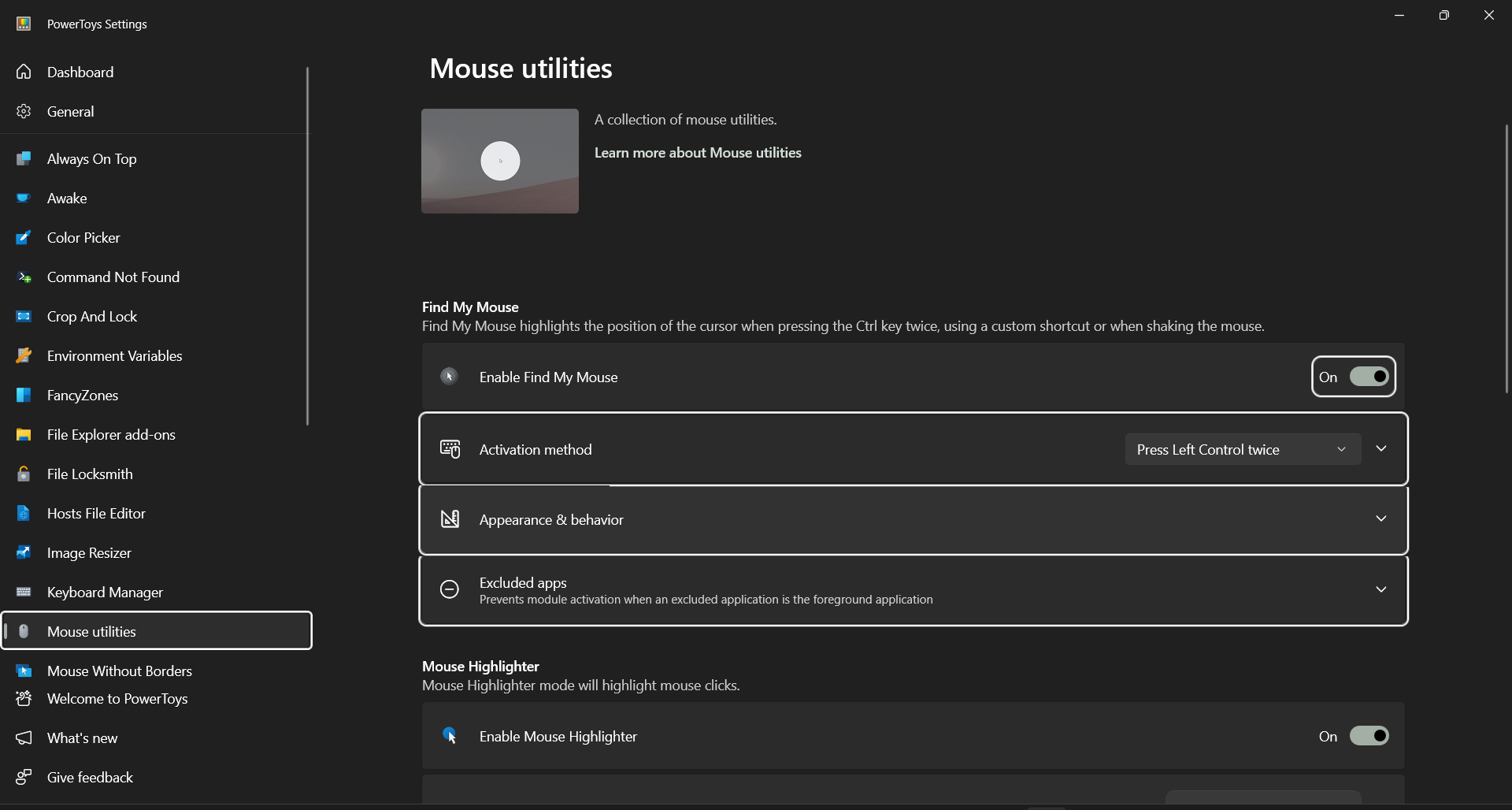
PowerToys is a collection of utilities for Windows power users developed by Microsoft. However, some of these utilities might still interest you whether you’re a power user or not - especially the Mouse Utilities. These include Find My Mouse, Mouse Highlighter, and Mouse Pointer Crosshairs. All of which are ways to keep your cursor within focus and can be toggled using customizable hotkeys. My personal favorite, Find My Mouse, lets you locate your cursor on the screen by pressing the left Ctrl key twice. It does so by placing a spotlight around the cursor and dimming the rest of the screen to make the spotlight more apparent. PowerToys also offers other potentially useful tools such as the 'Text Extractor' and the 'Color Picker', which let you copy text and color values (in almost any color format you might need) to the clipboard from anywhere on your screen, regardless of what program is in focus. These can come in handy when you're struggling with a bad font or when you need to match the colors from a reference picture you might be working with.
Dark Reader
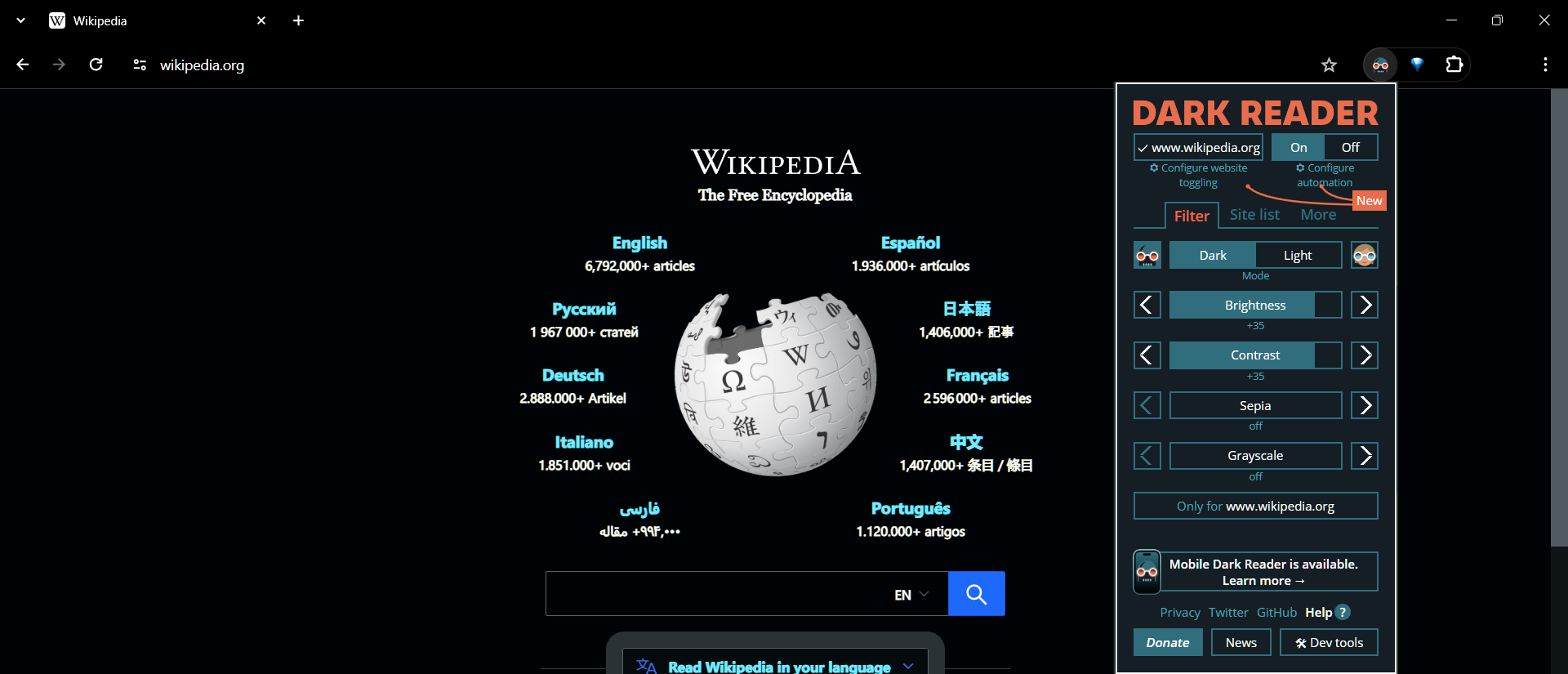
It can be quite jarring to open a website and be blinded by glaring white screen. Dark Reader is a browser extension that can change almost any webpage to have a dark theme. It lets you adjust brightness, contrast, sepia, and grayscale controls so you can customize your web experience to fit your needs. Dark Reader also offers an exceptions list that lets you exclude specific websites from being affected by the extension.
Microsoft Office
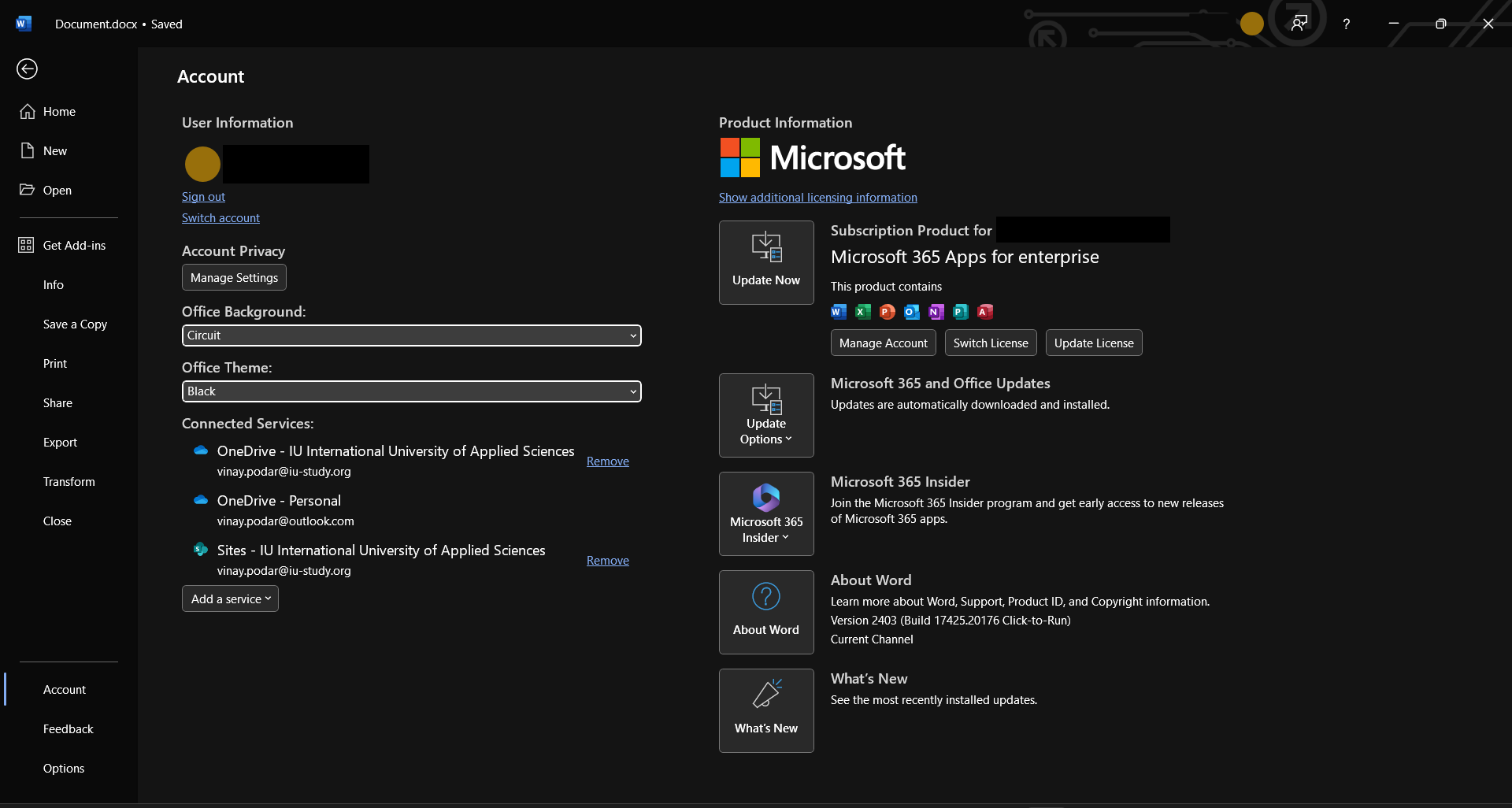
Word, Excel, PowerPoint, Outlook, and many more. Microsoft’s Office suite is an irreplaceable part of every professional’s arsenal. For the most part, these programs work great. However, you can make them work better for you with simple options like suite-wide themes and the lifesaving 'Switch Modes' feature in Word that can go a long way when reading and editing documents. The true gem of the Office suite, however, is its exceptional implementation of keyboard navigation.
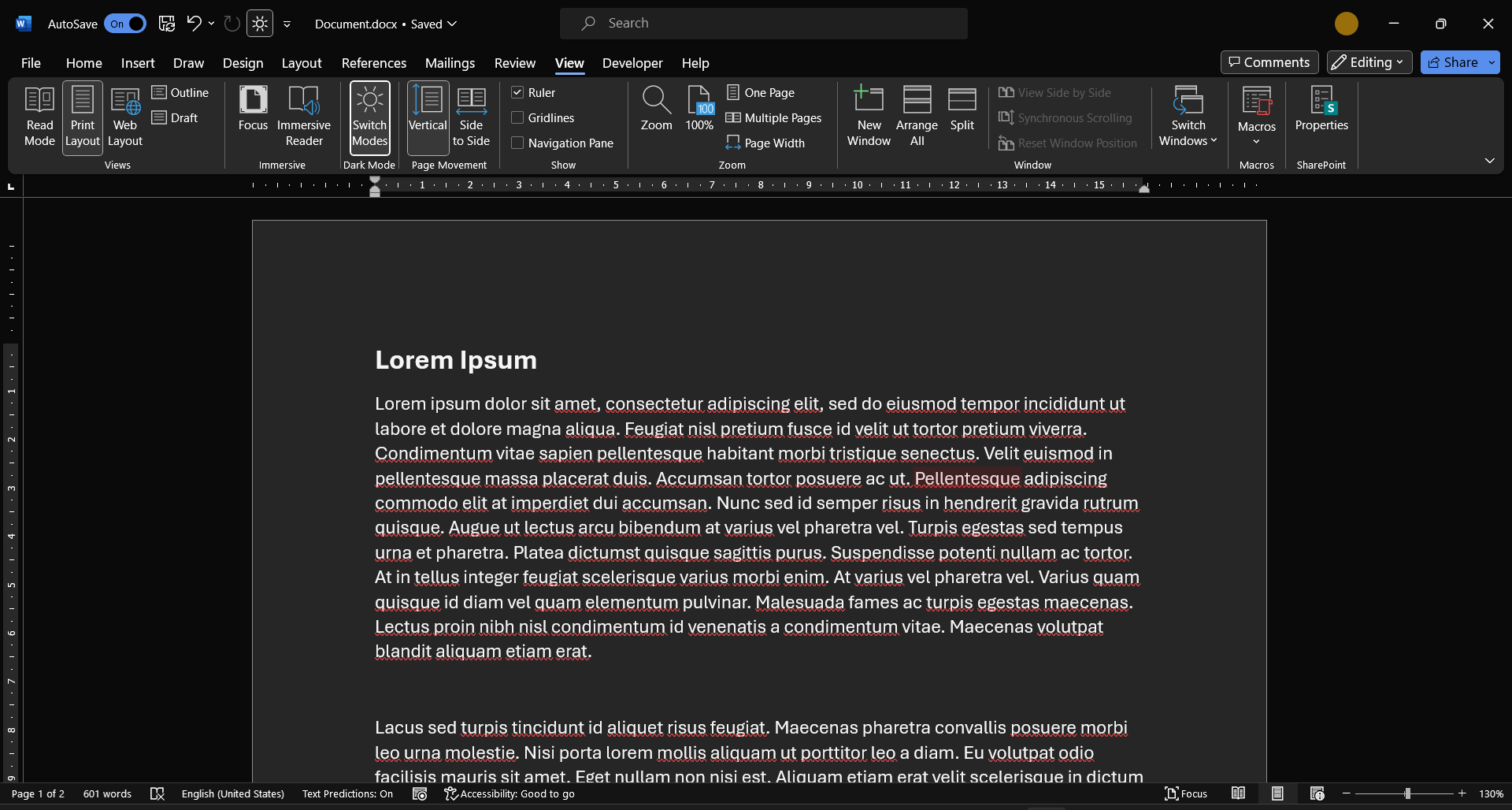
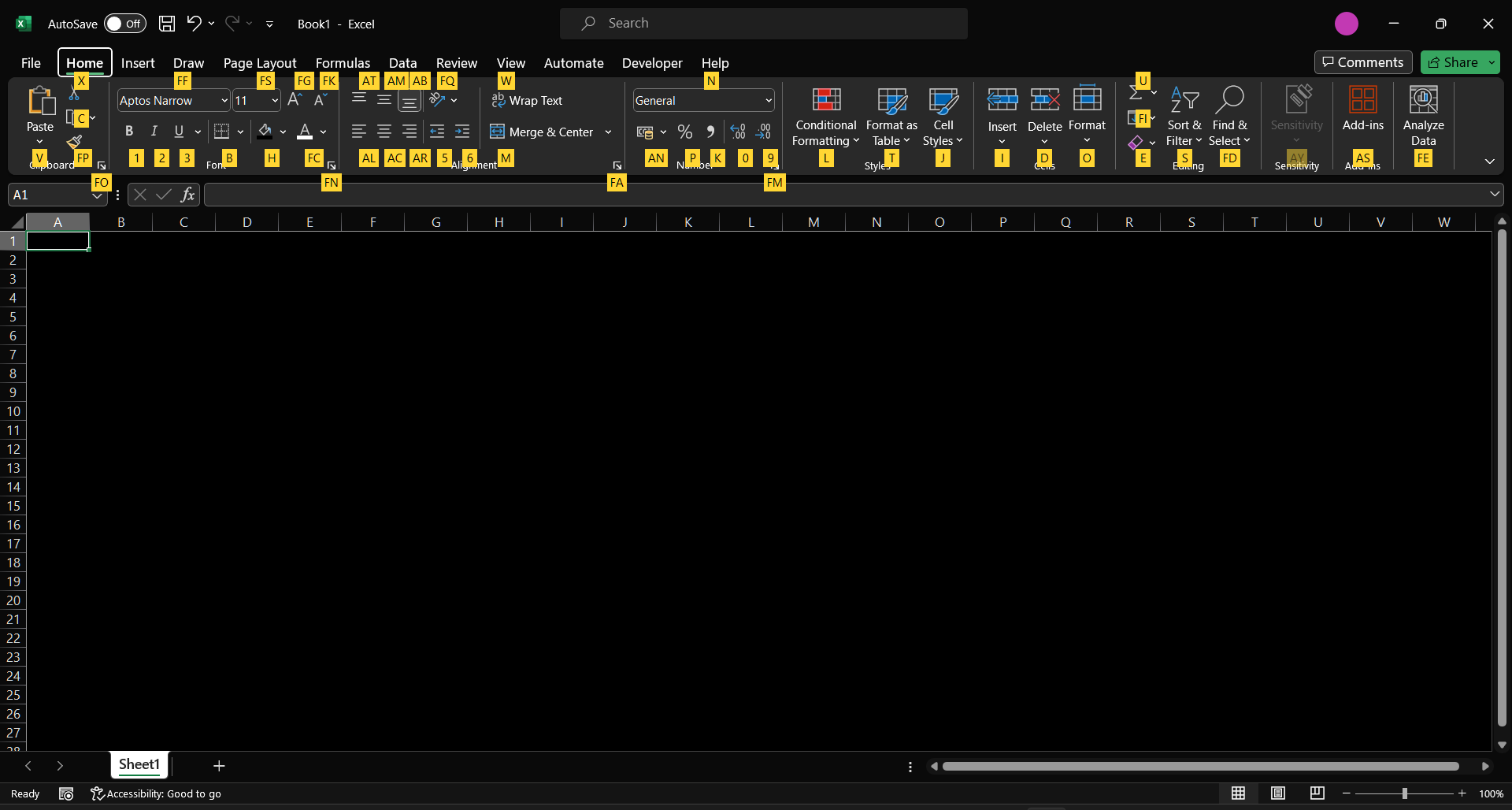
Keeping track of the cursor on your screen can be frustrating and challenging as a visually impaired user. Keyboard shortcuts and navigation can often be a much faster way to access the most used options. Pressing the ALT key in any Office app displays a series of characters next to every feature and tab in the ribbon menu, pressing any of these corresponding keys lets you seamlessly access the tools you need without relying on the mouse.
Nearly every feature on the top ribbon can be accessed using the ALT key, and if you don't see an option you need, ALT + Q takes you to the search bar. You can even use TAB and the arrow keys to maneuver through the interface after pressing ALT.
While the plethora of keyboard shortcuts may seem overwhelming initially, with some practice and effort, they can swiftly be integrated into your workflow, eliminating the need for conscious memorization, helping you work more efficiently.
Adobe Acrobat Reader (PDFs)
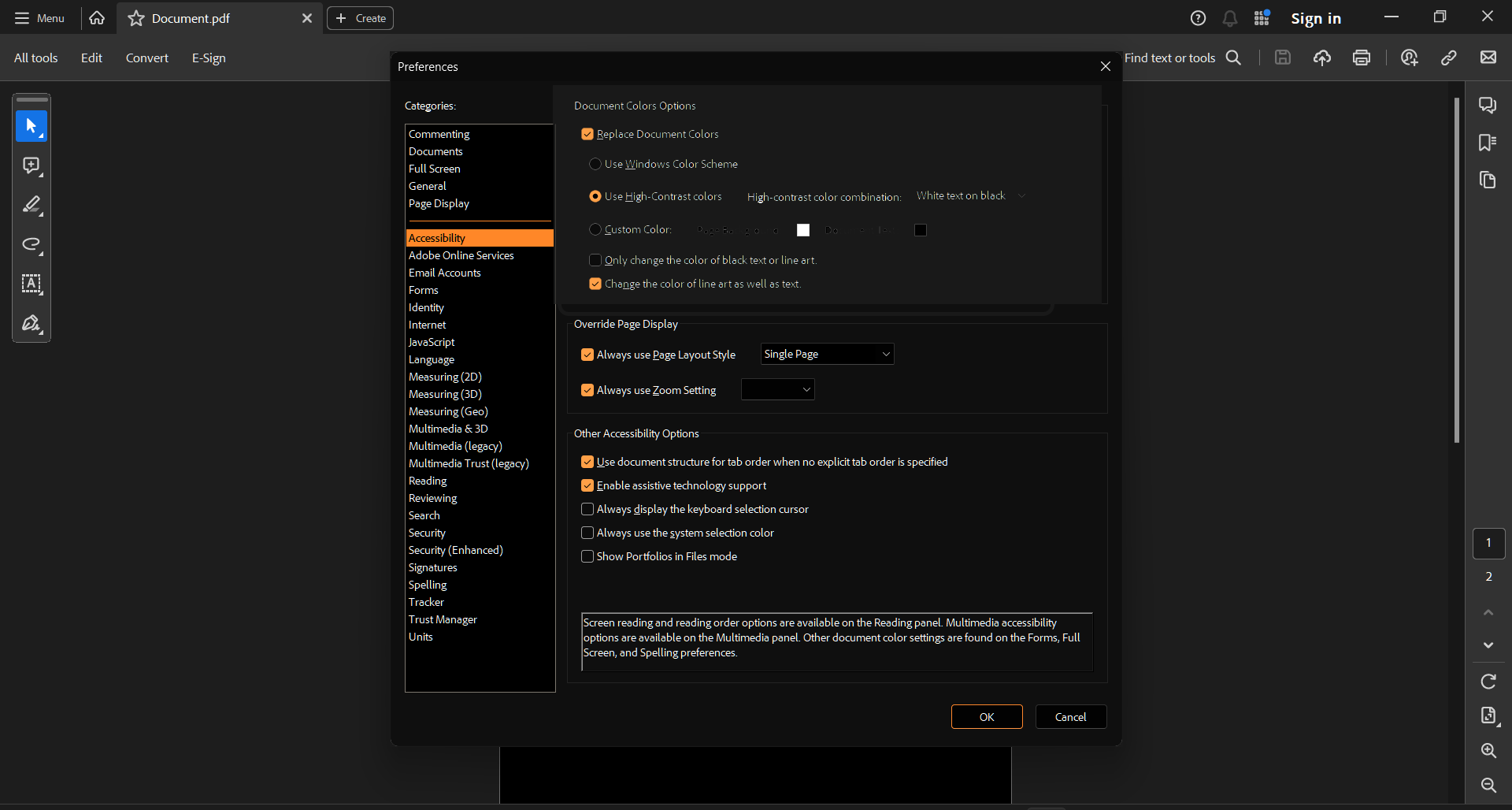
A quick option in Adobe Acrobat Reader's Accessibility settings, called 'Replace Document Colors' lets you pick one out of a few high contrast color combinations and will then automatically change any document you open to the colors you chose.
Note: This feature isn’t perfect and may not work with all documents and may sometimes hide elements by changing their colors even when not needed.
Honorable mentions
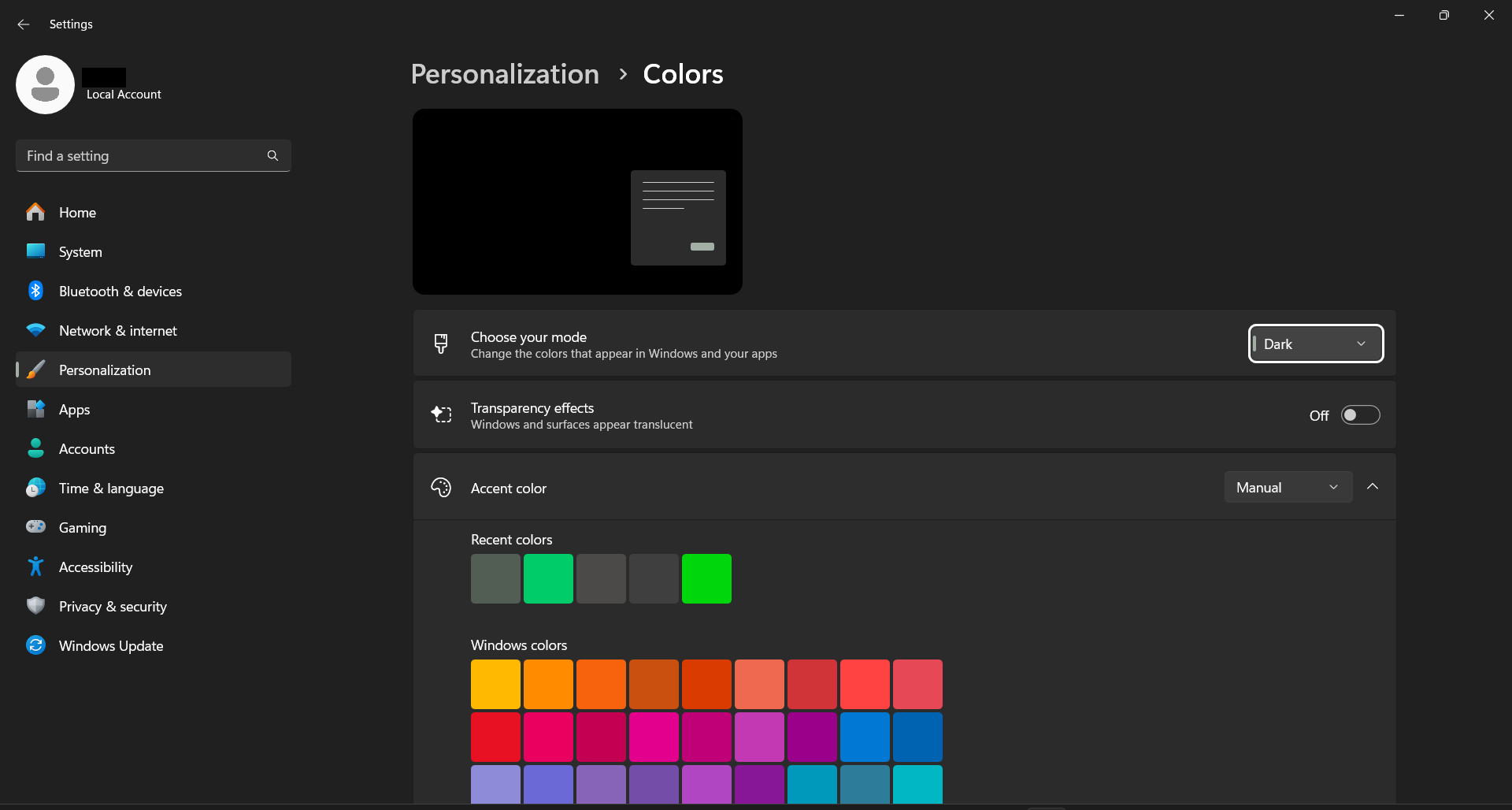
Most of us use Windows as a daily driver, and there are a few things you can do at the system-level to make it more accessible. Windows has a system-wide dark theme that can be toggled within the Personalization section in the Settings app. Frustratingly enough though, this dark theme does not apply to legacy menus in Windows, and there are still several programs that continue to use the same old light theme. For these, there's a quick workaround in the Accessibility section (Ease of Access in Windows 10). I'm sure you've already gone through the options in there, but just in case you missed it, the Color Filters in this section let you invert the colors on your screen using a keyboard shortcut Ctrl + Win + C.
Closing thoughts
Most of these features aren't labeled or marketed as accessibility tools. For an average user, these tools are merely a way to make things look better or work faster. Options like keyboard navigation and themes are an under-utilized 'nice to have', and that may be why they aren't always prioritized during development. But, for people with vision disabilities, these tools can bridge the gap between not being able to do something at all and being able to do it independently. That's why it's important to constantly push for such features, for tools that help people with any form of disability.
To address these challenges, designers, developers, and policymakers must take proactive steps to ensure that technology is accessible to all. This includes incorporating accessibility features into mainstream technologies and popular apps, websites, and services, providing assistive technology devices and services, and promoting and adhering to universal design principles.